Case study My first shipped project · 2025
The right app takes focus, the display retunes itself.
EXFIL is a small Windows app that lives down in your taskbar tray. You tie a color profile to
any app, and EXFIL swaps to it the second you click into that app. Tarkov is washed out and
dark, so I crank up the color for it. My desktop and editing apps stay normal. Movies sit
somewhere in between. You point it at an app, pick a profile, and then stop thinking about it.
Since it's already running anyway, it doubles as a slim overlay that shows your live frame rate, your graphics card, processor and memory load, and your core temperatures. That way I can see what my PC is doing without opening a second tool.
This was the first tool I ever shipped. I built the first version early in 2025 in C# and .NET
8, and it's the project where I learned to take an idea all the way to finished, working
software. Then in 2026 I rebuilt it from scratch in Rust. Same app, much better foundation,
and everything below that I'd learned the hard way the first time got designed in from the
start. Both versions are public and open source, so you can put them
side by side and see how far the work came in a year. The Rust one is the one to actually
install — it's free to download and it updates itself.
01 / 05 The problem Why this exists
One screen setting can't cover everything you do on the same PC.
It started with Tarkov. The game is dark and low on contrast, so I crank up the screen's color
to make targets stand out. The problem is that same setting makes my desktop, my photos, and my
movies look radioactive. The usual fix is to toggle it by hand every time you launch the game.
Nobody actually does that.
Once I had Tarkov working, the rest came almost for free. EXFIL keeps an unlimited list of
profiles, one for each app you care about. You tie a profile to an app, and EXFIL swaps to it
the instant you click into that app. No hotkeys, no flipping settings by hand.
02 / 05 Inside EXFIL Tray · settings · overlay
A tray icon, a settings window, and a slim overlay. Then you forget it's there.
There are really only three parts. The little tray icon down by the clock handles quick profile
switching. The settings window is where you set up your per-app profiles, the on-screen overlay,
and the system info. And the overlay itself floats over whatever app you're in, showing your
frame rate and PC stats. That's the entire app.
exfil · dashboard
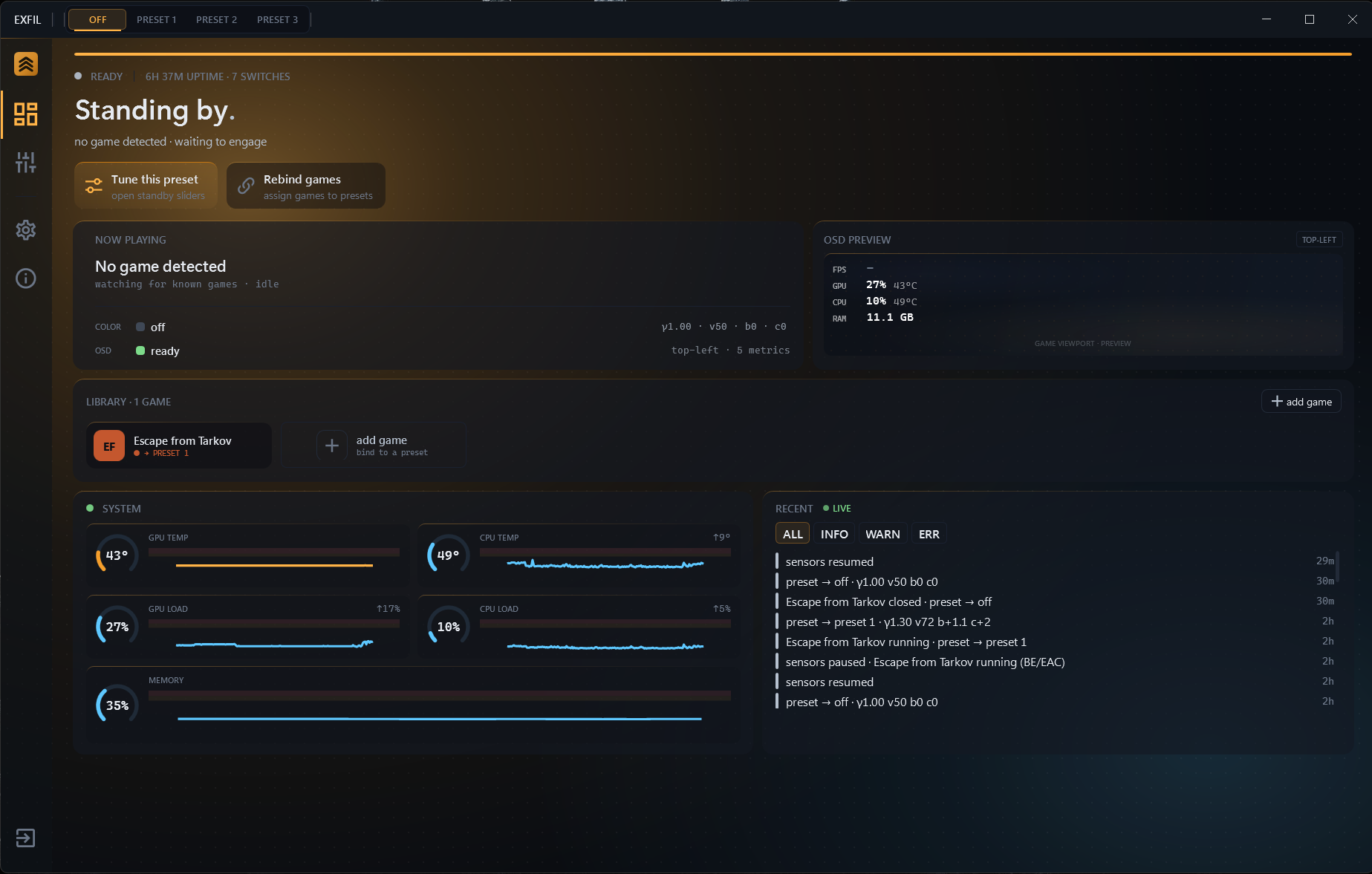
Dashboard. Live tray status, a preview of the on-screen overlay, your game library, and a panel pulling graphics and processor temps and load straight from the hardware.
exfil · presets
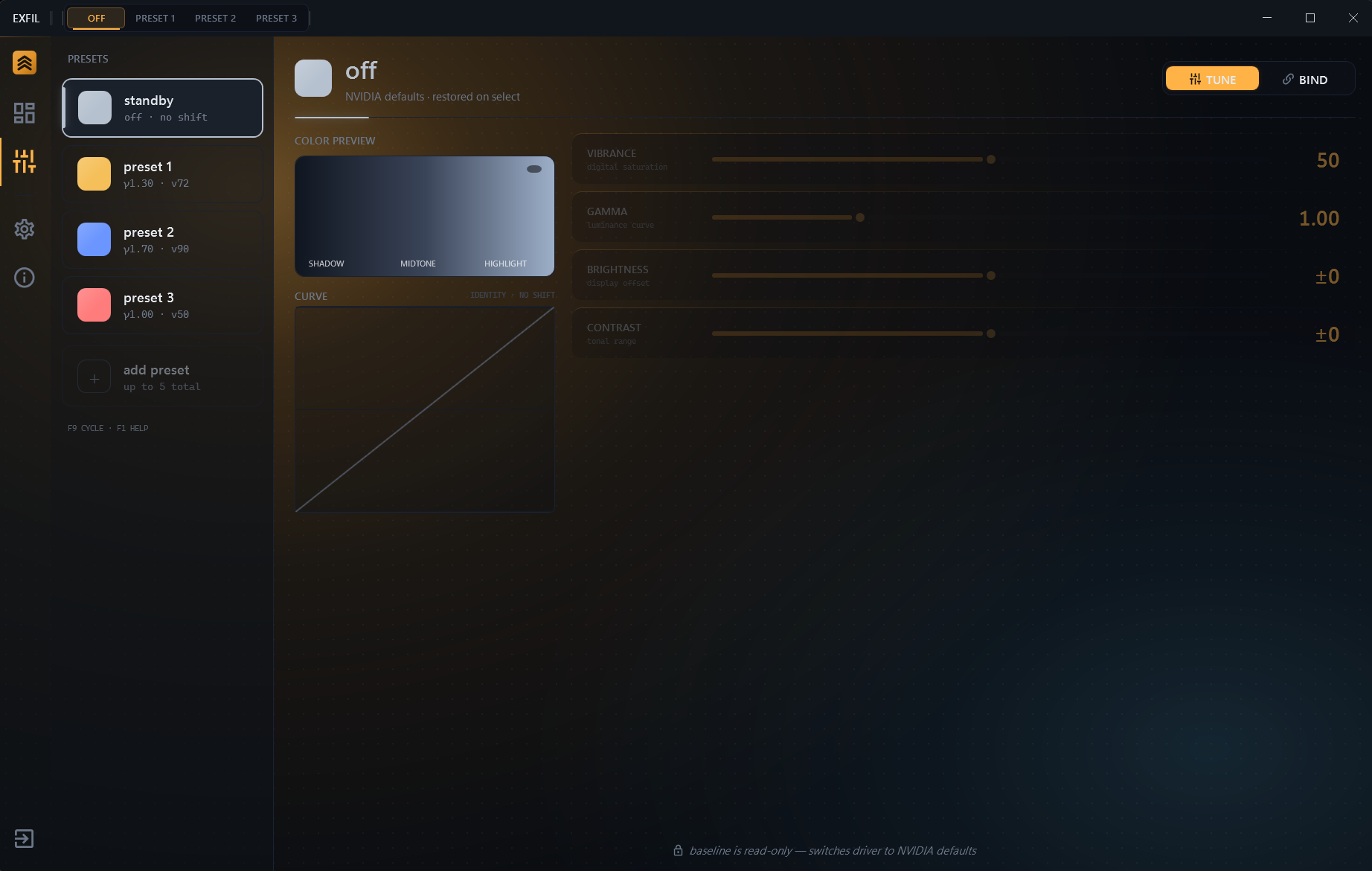
Presets. Set color, brightness, and contrast for each app. Tie a preset to a game and EXFIL applies it the instant you click in.
exfil · overlay designer
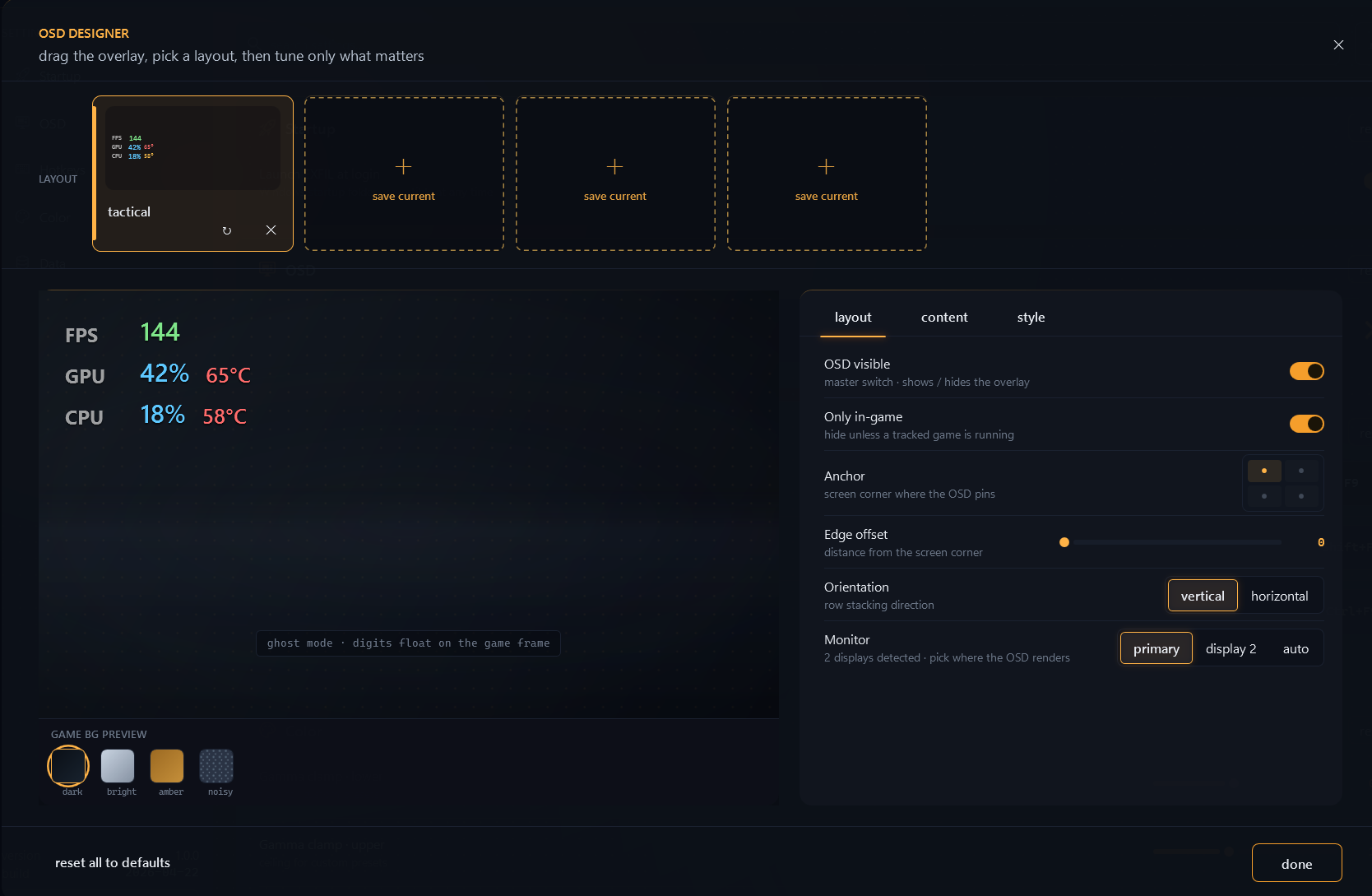
Overlay designer. Drag the overlay wherever it fits, pick a layout, and choose what it shows. Your frame rate, graphics and processor load, and temps all draw on top of the game without ever touching it.
exfil · about
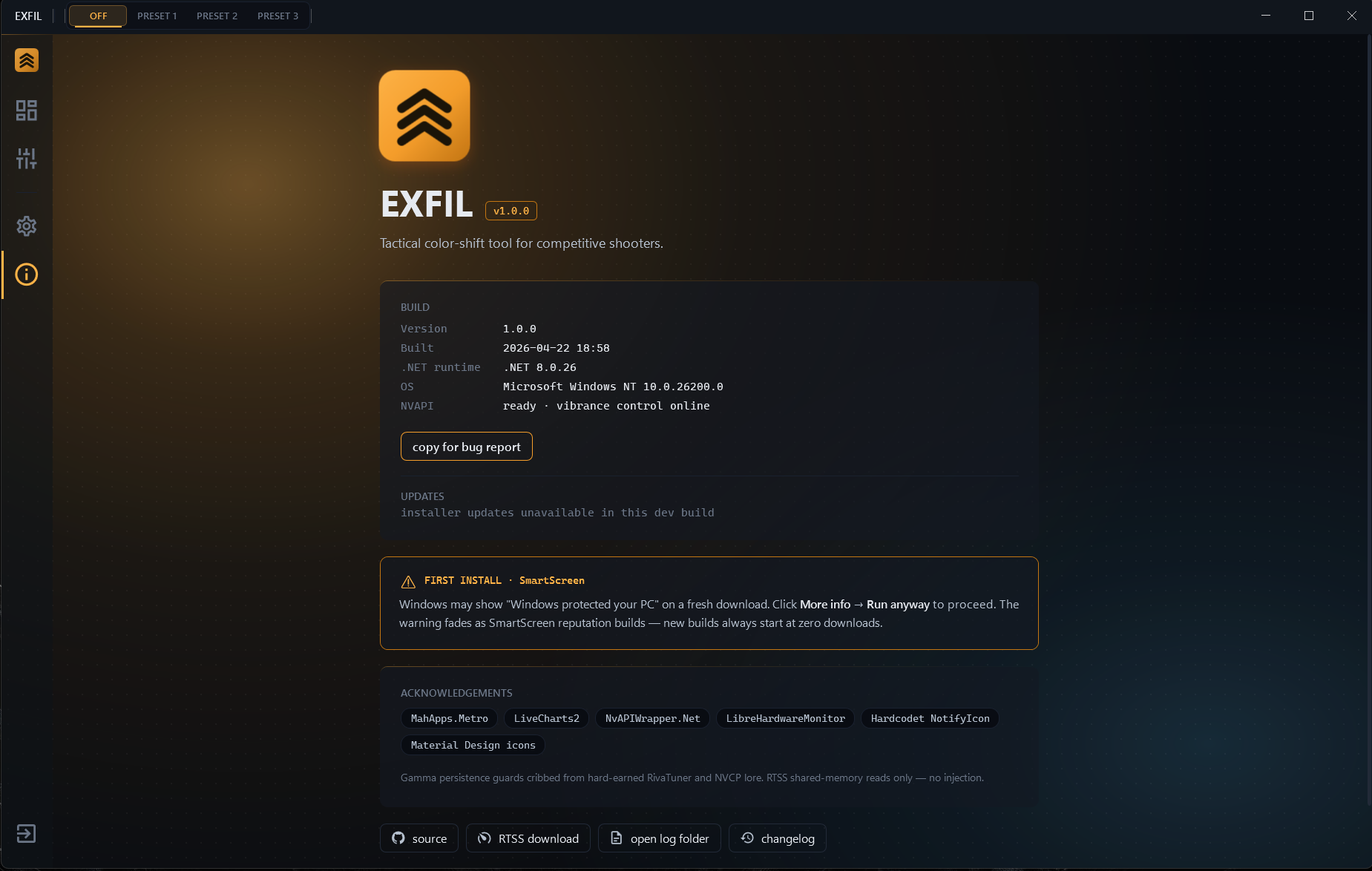
About. Build, runtime, and graphics-driver status all in one view. Bug-report copy, changelog, and source links live here too.
C# .NET 8 WPF Rust Tauri 2 Graphics driver Windows APIs HDR-aware Multi-monitor
03 / 05 The ugly corners The part that took the months
Easy on my own PC. Hard on everyone else's.
Getting this working on my own machine took a weekend. Getting it to not break on someone
else's laptop took a lot longer. Think a strange external monitor, HDR turned half on, the thing
docked at a coffee shop. That's where the real time went.
01 Knowing which app you just clicked into
EXFIL watches for whichever app you've clicked into and figures out what it actually is. It matches on the real program, not the window's title, because titles change all the time. It does this without constantly checking in the background, which would drain your battery. Anything it doesn't recognize just quietly falls back to your normal look.
- How
- It spots the real program the moment you switch
- Result
- As many app profiles as you want
02 Talking to the graphics card
The color setting EXFIL controls isn't something Windows lets you reach. It's buried deep inside NVIDIA's graphics driver, with no clean or reliable way in. So this part had to be built from scratch, talking straight to the driver's own low-level controls. Getting it right taught me a lot about how that layer really behaves.
- How
- It talks straight to the graphics driver
- Result
- Steady, reliable control of your screen
03 HDR screens change the rules
When a screen is in HDR mode, the color works differently, and using the wrong settings can look worse than doing nothing at all. So before EXFIL touches anything, it asks Windows whether each display is actually in HDR, then adjusts to match. It never just assumes how your setup is put together.
- How
- It checks each screen before it acts
- Result
- Looks right on HDR and normal screens
04 Monitors get unplugged mid-session
People unplug monitors. They dock and undock laptops. Screens go to sleep and wake up looking different. When any of that happens, EXFIL notices, takes stock of what's connected now, and re-applies the right settings. It doesn't just sit there confused, still pointed at a screen that isn't there anymore.
- How
- It re-checks whenever your screens change
- Result
- Handles unplugging and docking cleanly
05 Settings that survive an update
Every time I change how settings get saved, I risk wiping out everyone's existing setup on the next update. So EXFIL knows how to read its older settings and quietly bring them up to date. If anything looks wrong while it's doing that, it backs out safely instead of corrupting your setup. The settings you saved six months ago still load just fine today.
- How
- It upgrades your old settings for you
- Result
- Updates never wipe out your setup
06 If it crashes, your desktop is still fine
The worst case is EXFIL crashing while a punchy game profile is still on. That leaves your whole desktop looking blown out and oversaturated, with no obvious way to fix it. So every time it starts up, it checks whether the last session ended badly and resets you back to normal before it does anything else. You never get stuck staring at a wrong-looking screen.
- How
- It resets you to normal after a crash
- Result
- You never get left stuck
04 / 05 How I built it AI-assisted, not AI-written
Built the way I build everything. I make the calls, the AI helps me move.
I'd decide the next piece myself. Say, it needs to notice when a monitor gets unplugged and put
the right profile back. I'd sketch out how I wanted it to work and hand that off. Then I'd read
through what came back and keep only what I'd been through and could stand behind. That's why I
can still explain every choice here. Why it recovers the way it does after a crash. Why your old settings
survive an update. Why it checks for HDR first.
05 / 05 What I'd do differently Honest retro
What the next build would get right from day one.
01
Start with the crash path
The crash-recovery safety net got added late. Next time I'd plan out the "what happens if this dies at a bad moment" story on day one, not after I'd already shipped and started getting nervous about it.
02
Write the settings schema first
I evolved the config organically, then had to retrofit versioning. Next time I'd commit to a schema and migration pattern before writing any UI.
03
Test on a laptop earlier
Mismatched screen sizes, HDR, external monitors, docking. All the ugly display edge cases live on laptops. I tested on a desktop too long, and the bugs piled up while I wasn't looking.
This is where it started. See where it went.